Gallery
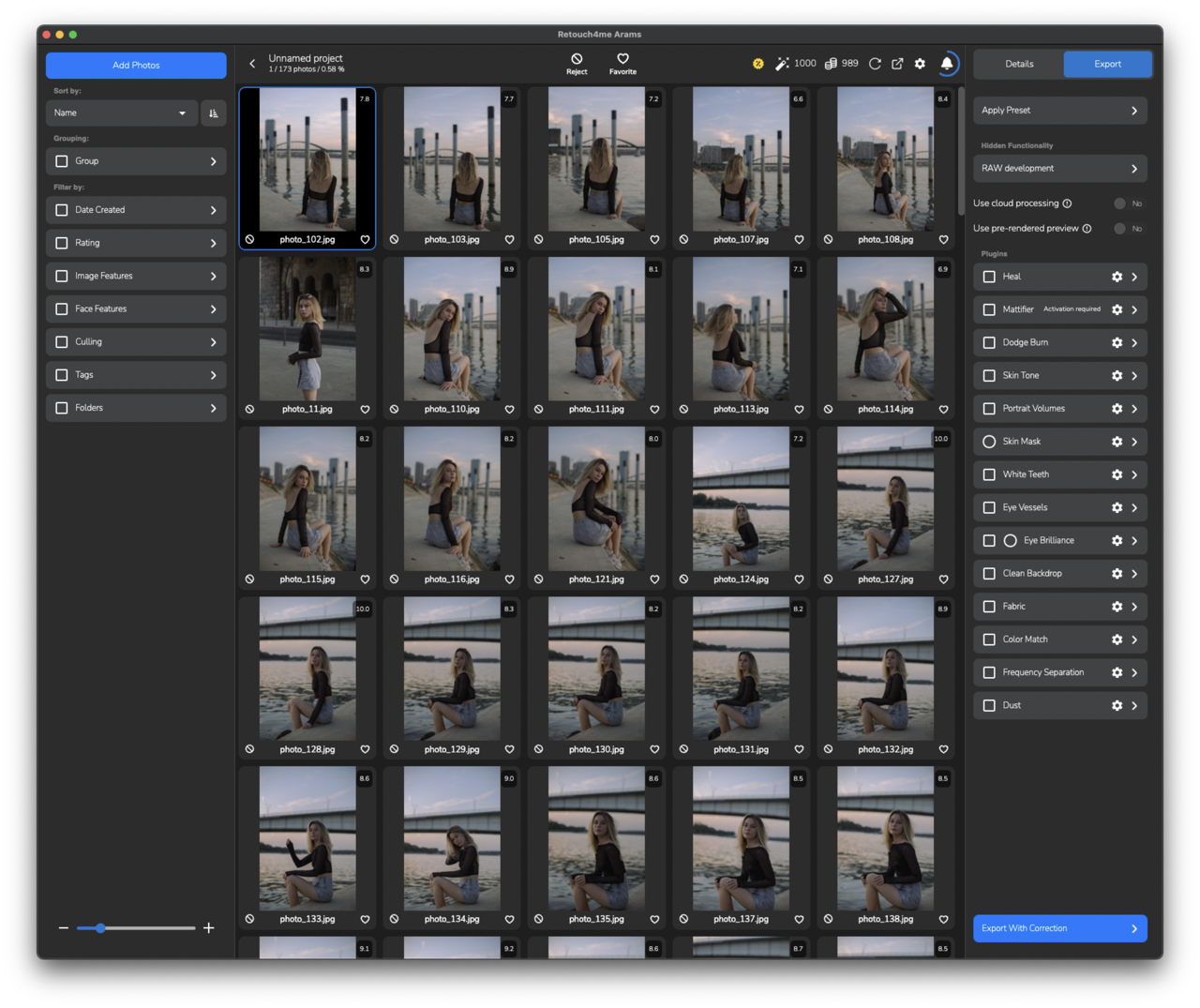
Grid Size
Adjust the grid size for the preview using the slider in the left menu or the following hotkeys:
- MacOS:
Command++or- - Windows:
Ctrl++or-
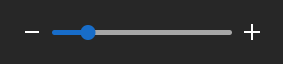
The slider for adjusting the preview grid size of photos in the catalog
Full-Screen Mode
To open a photo in full screen, double-click on the photo you're interested in. For navigation, you can use the mini-gallery at the bottom or the arrow keys on your keyboard.
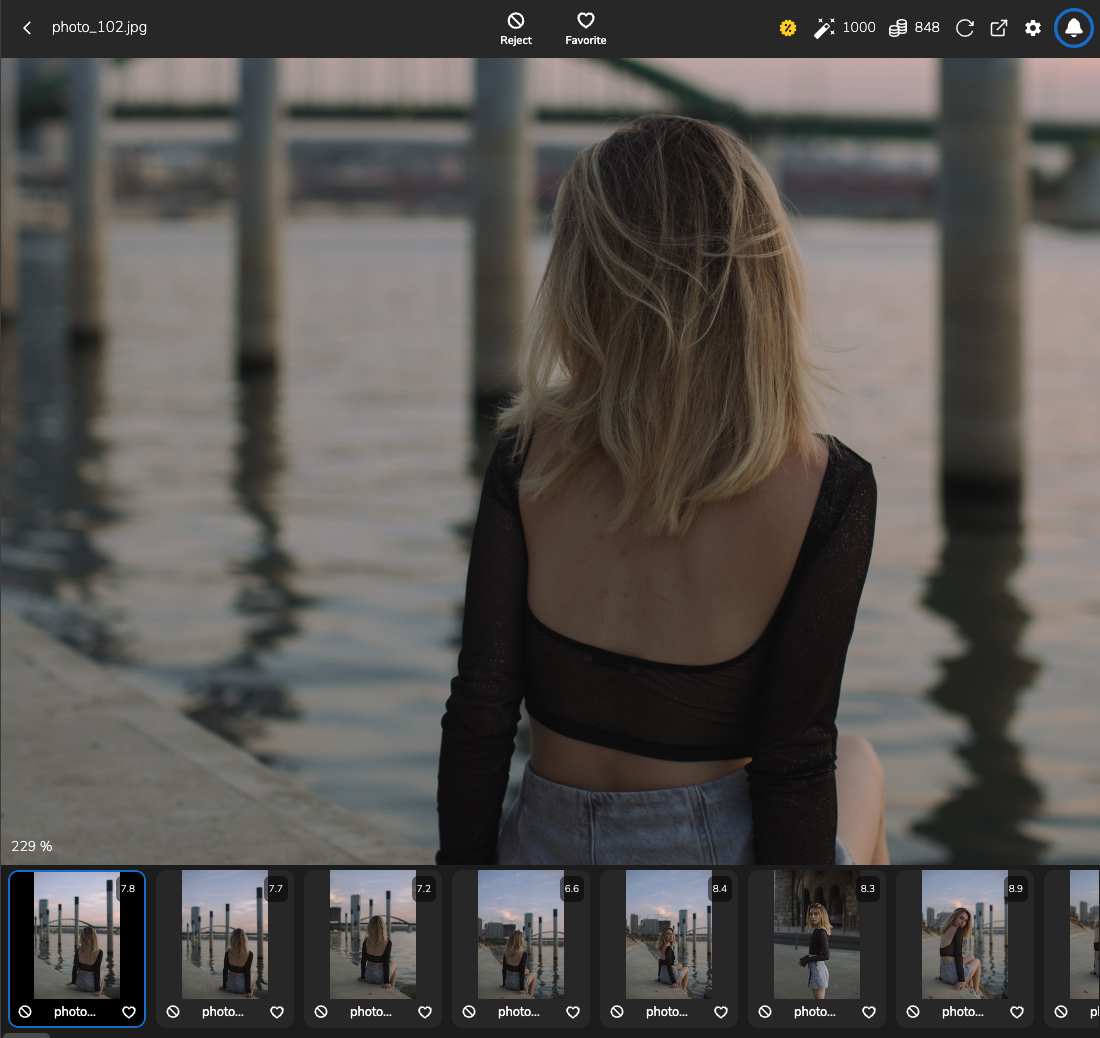
Full-screen mode with a mini-gallery
In this mode, the size slider will control the zoom of the photo, or you can use the mouse wheel or keyboard hotkeys to adjust the zoom.
Status Bar
The top bar displays the following elements:
- The name of the catalog or selected photo
RejectandFavoritebuttons for manual photo selectionCloud Retouchingbalance, which allows processing photos using cloud solutions, if you've purchased a subscription and haven't bought the plugins separatelyPhoto Analysisbalance, which is used for photo and face analysis, included in the subscription or purchased separately- To refresh the balance counter, click the
Update Creditsbutton - To top up your balance, click the
Buy credits on our websitebutton Settingsbutton for quick access to settingsNotificationsbutton, where you can view the statuses of photo analysis and export history.

Status bar
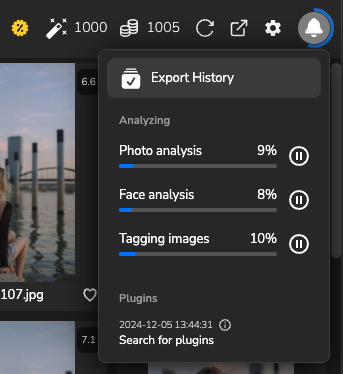
Notifications
Photo Marking
For selecting photos, you can manually set the following parameters:
Rating– Assign a manual rating where you can evaluate each photo yourselfFavorite– Mark a photo as a favorite if you truly like itReject– Mark a photo as rejected if it didn't turn out well for quick removal from the catalog
To assign a rating or manually mark a photo, right-click on the photo you're interested in. To assign a rating, select Rate this at the bottom of the menu. For manual selection, open the Mark Images tab in the same menu and choose the desired option, or click the corresponding buttons in the status bar at the top of the screen.
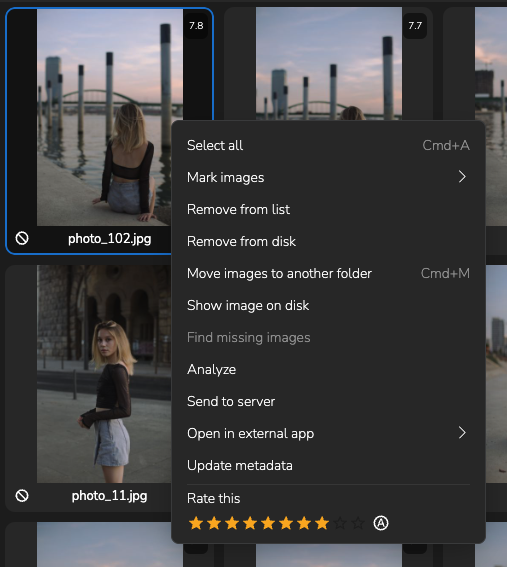
Photo Operations Menu